Choose the appropriate client or your own organization.
Click Users
(tab).
You see a list of the currently configured users.
Click a user's name.
You see a summary of the user's profile, training
plan and certifications.
Click Renew
membership.
The bottom portion of the screen changes to show a Membership
renewal area.
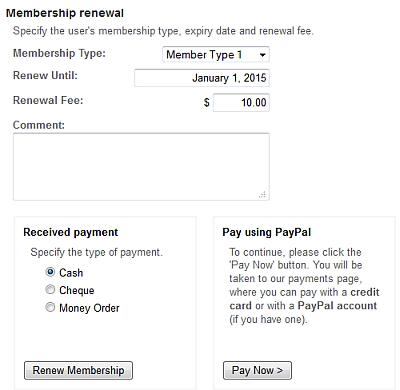
If necessary, change the Membership Type.
The Renew Until date defaults to the value defined for the membership type: change it, if necessary.
The Renewal Fee defaults to the fee specified for the membership type: change it, if necessary.
Add any descriptive Comments to capture information about exceptions made or special circumstances that were accommodated (comments appear in reports and transaction history).
If you have Received
Payment from the user, specify the type of payment (e.g. cash)
-or-
To enter PayPal payment, click Pay
Now (you are re-directed to the PayPal site.